
StoreSync Information
Everything you need to manage Shopify metafields at scale — import and export with CSV, XLSX & Google Sheets, edit products, collections, and pages in a spreadsheet-style grid, and keep a full audit trail of every job.
Introduction
StoreSync is a bulk metafield manager for Shopify. It turns the tedious, one-at-a-time work of editing product data into a fast, spreadsheet-style workflow — and keeps a complete record of every change.
With StoreSync you can:
- Edit products, collections, pages, metafields, and metaobjects in one grid
- Import store data in bulk from CSV, XLSX, or a public Google Sheet
- Export a clean snapshot of your catalog at any time
- Track every import, export, and sync job with a full activity history
New here? Jump to Getting Started for a five-minute setup, then explore the Bulk Editor.
Getting Started
From install to your first bulk edit in four steps.
Install from the Shopify App Store
Add StoreSync to your store in one click. It requests only the scopes it needs to read and write products, collections, pages, metafields, and store files.
Run your first sync
On launch, StoreSync pulls a snapshot of your catalog. The header shows when your store was last synced and how many trial days remain.
Open the Bulk Editor
Review your products, collections, and pages in a spreadsheet-style grid. Every metafield is a column you can edit inline.
Import or edit at scale
Upload a CSV / XLSX, connect a Google Sheet, or edit cells directly in the grid — every change saves back to Shopify in real time.
The header always shows your last sync time and remaining trial days, so you know your data is current before you start editing.
Importing Data
The File Import tool bulk-updates metafields from a spreadsheet. Choose a file upload or a Google Sheets URL, then move through three guided steps.
-
1
Upload
Select a CSV or XLSX file, or paste a public Google Sheets URL.
-
2
Map Columns
Match each spreadsheet column to a Shopify field, metafield, or metaobject reference.
-
3
Preview
Review and validate every row before anything is written.
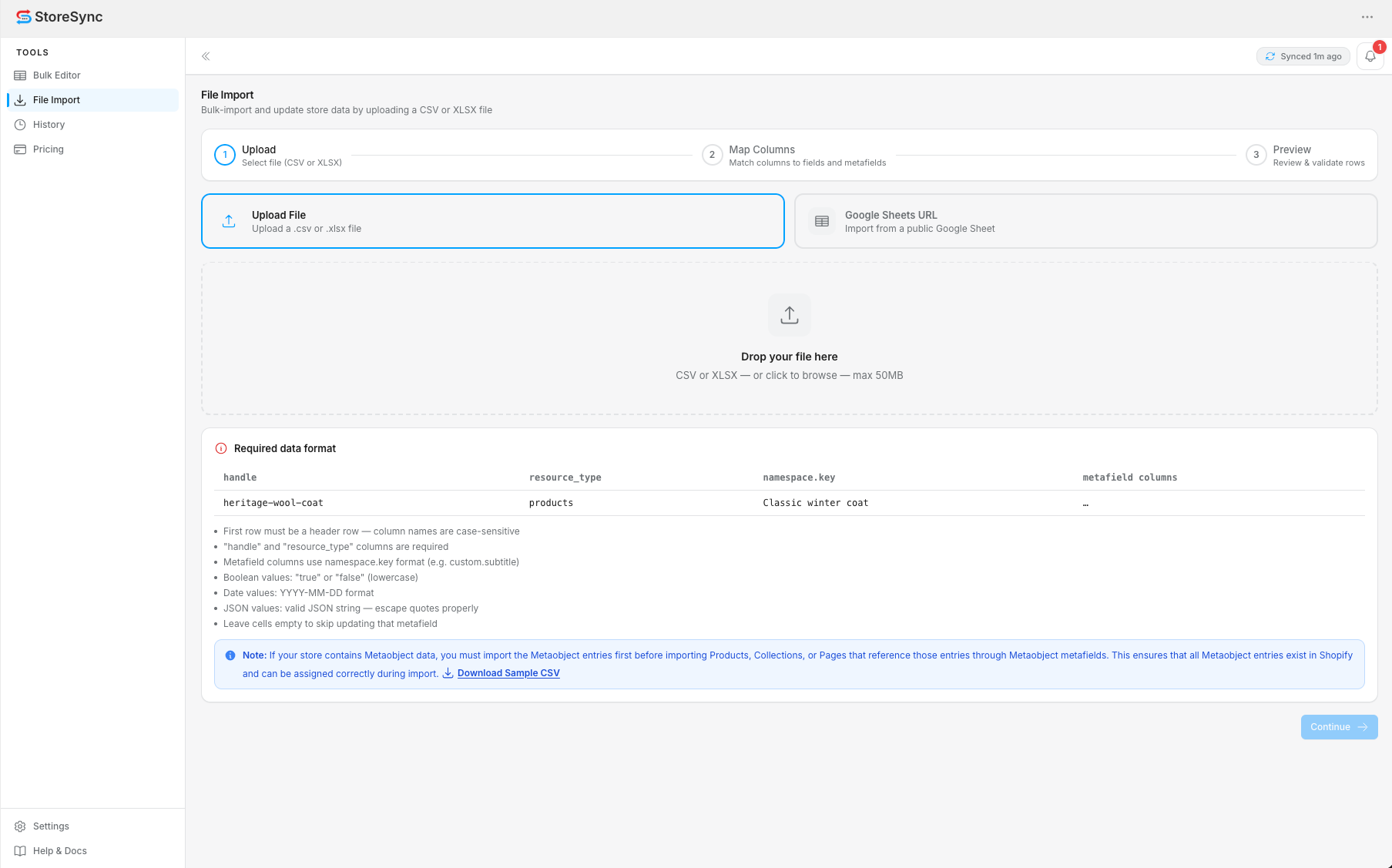
Importing from Google Sheets
Select Google Sheets URL, set the sheet's sharing to Anyone with the link → Viewer, then paste the full spreadsheet link. Private sheets cannot be accessed.
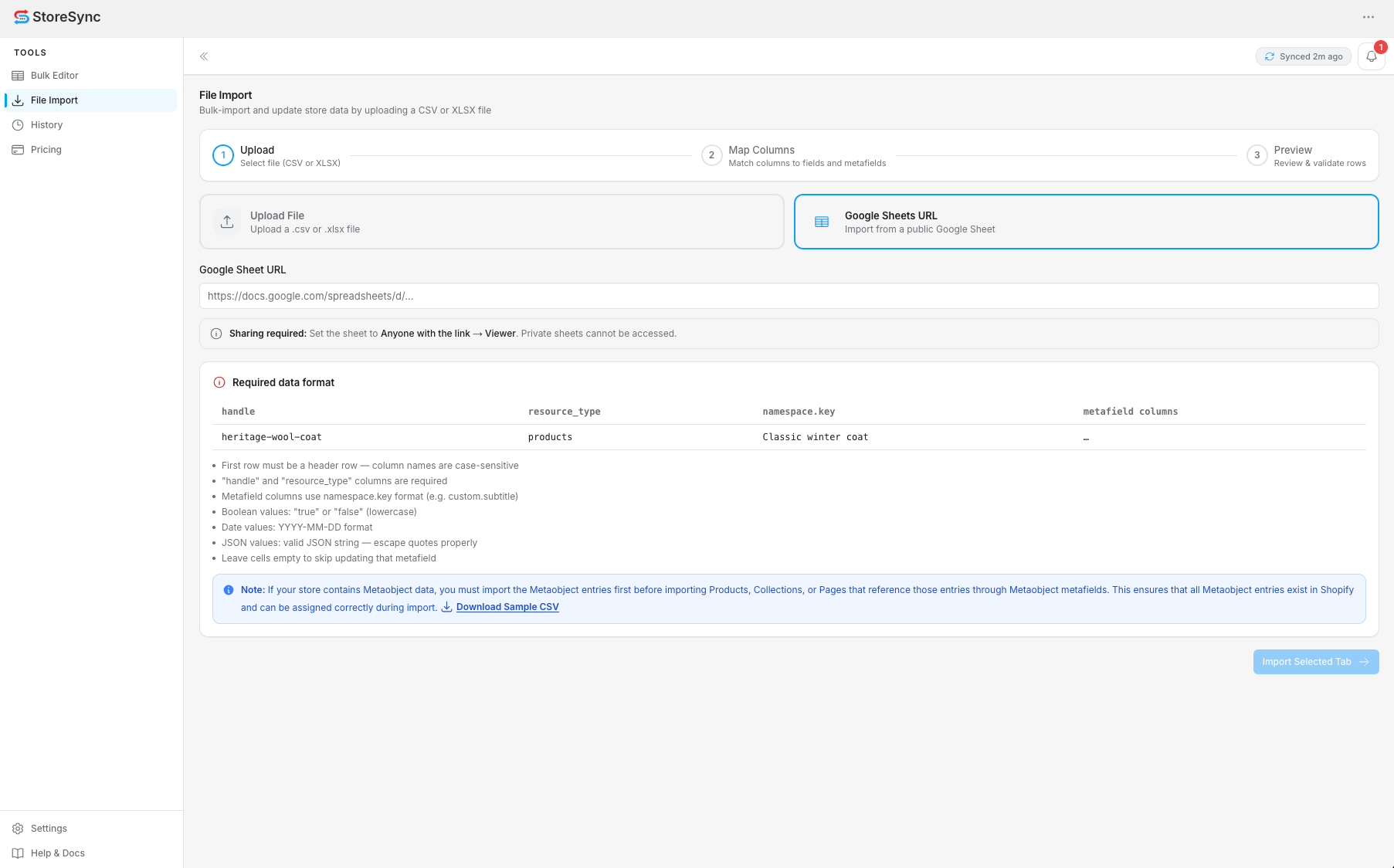
File format
Whatever the source, your data must follow this structure:
- First row must be a header row — column names are case-sensitive
- "handle" and "resource_type" columns are required
- Metafield columns use namespace.key format (e.g. custom.subtitle)
- Boolean values: "true" or "false" (lowercase)
- Date values: YYYY-MM-DD format
- JSON values: valid JSON string — escape quotes properly
- Leave cells empty to skip updating that metafield
Bulk Editor
The Bulk Editor shows your catalog as an editable, spreadsheet-style grid. Every metafield is a column; click any cell to edit it inline and your change is saved to Shopify in real time — there's no separate save step. Work is split across three tabs.
Products
title · vendor · product type · tags · price
Edit core fields and any product metafield across your whole catalog in one grid.
Collections
title · description · featured image · products
Update collection copy, imagery, and product assignments without leaving the editor.
Pages
title · content (page.body)
Manage page titles, body content, and metafields together.
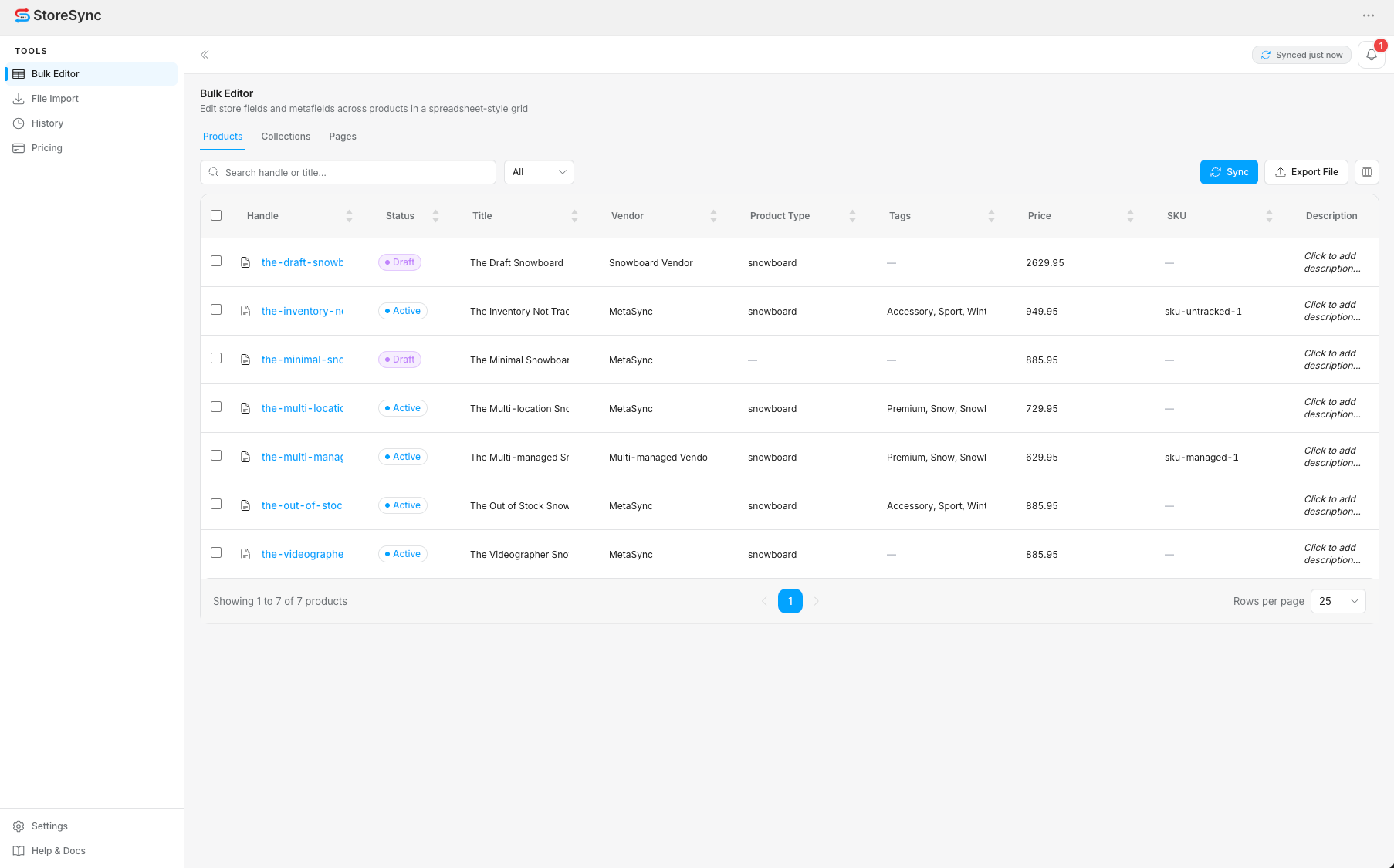
Collections & Pages
Collections and pages work the same way. Switch tabs to update collection imagery and product assignments, or page titles and body content — without leaving the grid.
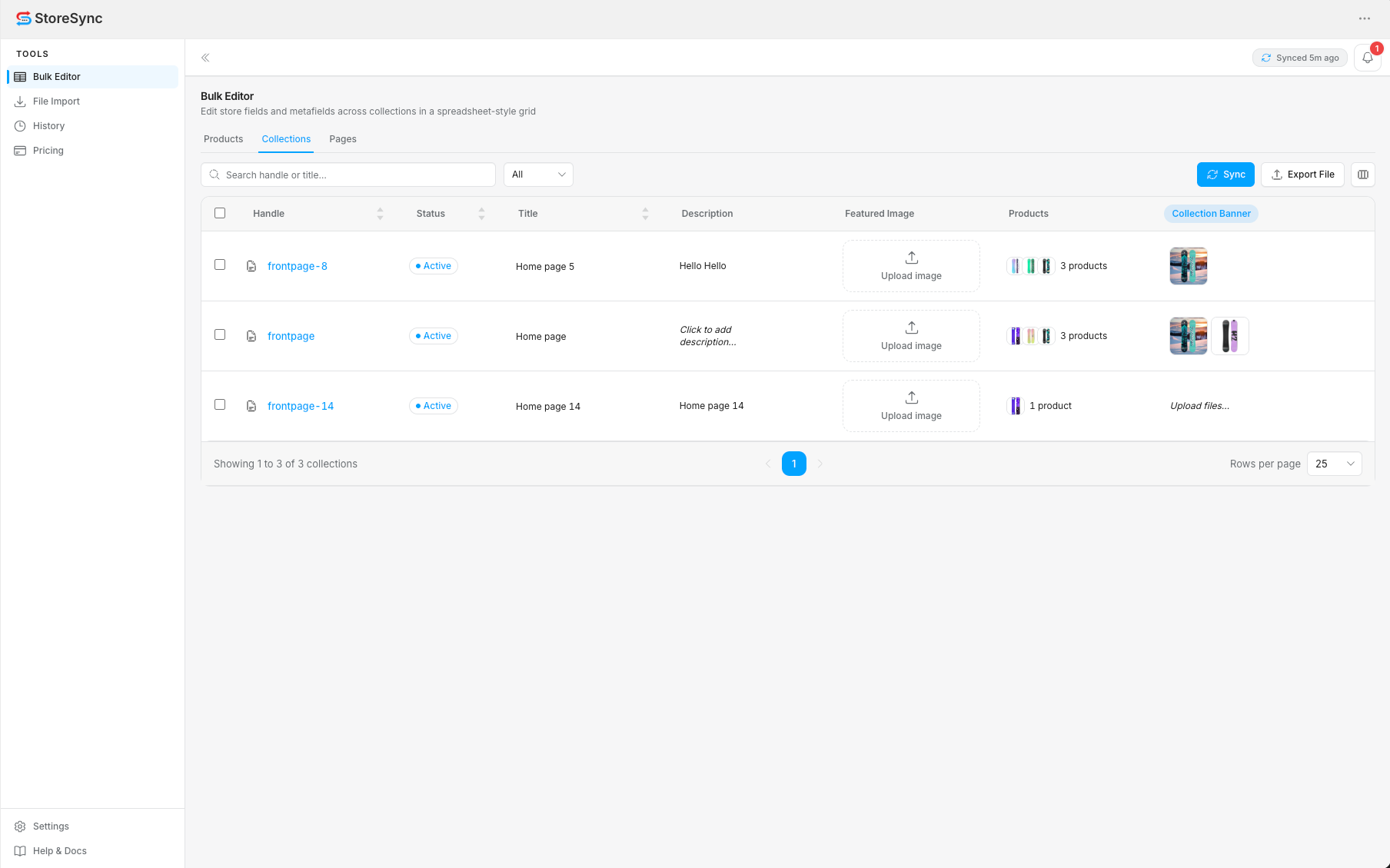
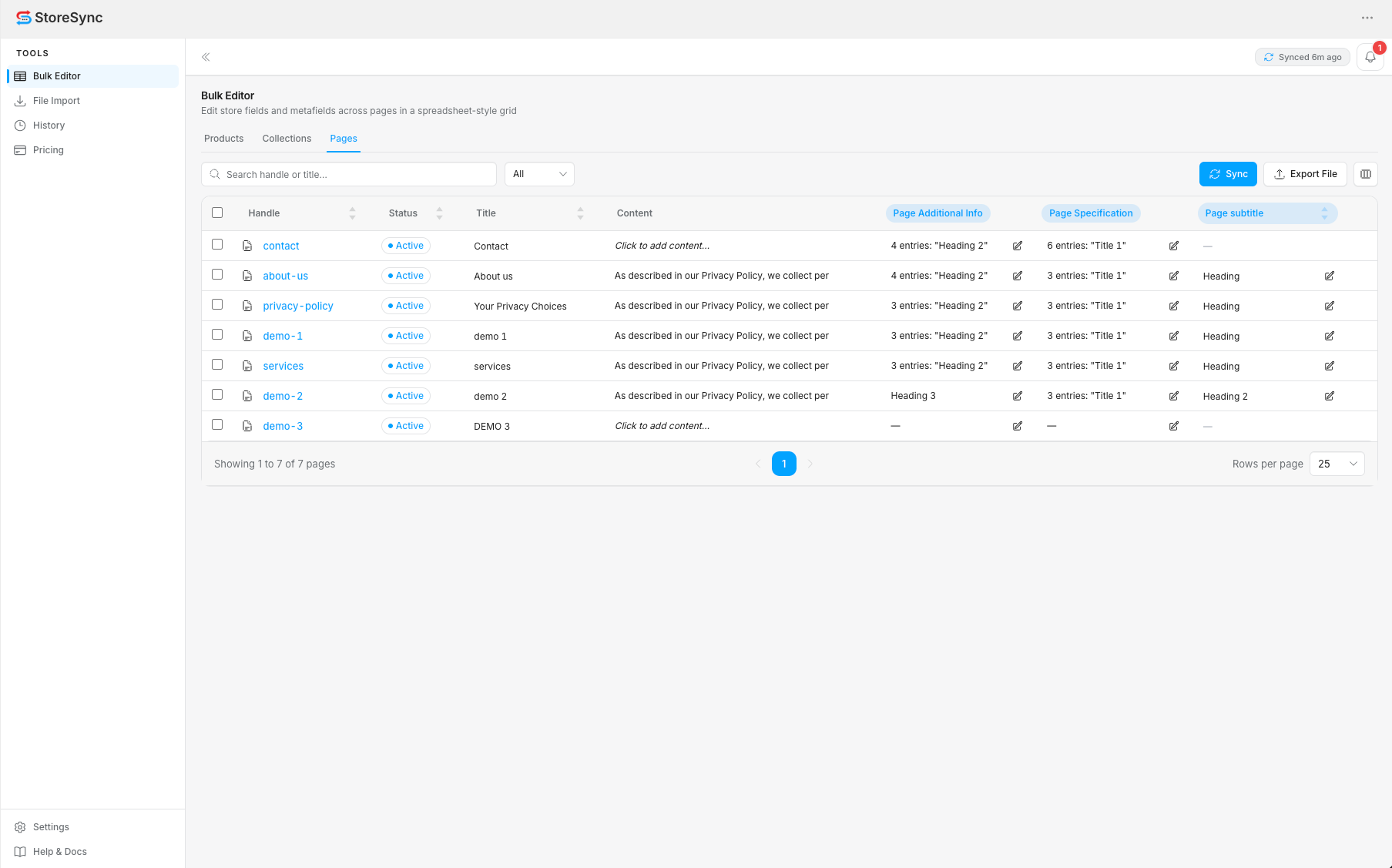
Use the search box and status filter at the top of the grid to narrow large catalogs before editing.
Exporting
Click Export File on any Bulk Editor tab to download a CSV snapshot of the current resource — products, collections, or pages. Exports use the same column layout that imports expect, so a fresh export doubles as a ready-made import template.
One-click CSV
Export the active tab's data with every metafield column included.
Use it as a backup
Keep an export before any large import so you can always restore previous values.
History report exports are saved as CSV files directly into your own Shopify store's Files, under your store account — see the Privacy Policy for where data lives.
Synchronization
StoreSync keeps a local working copy of your catalog so the grid stays fast. The Sync button pulls the latest data from Shopify on demand, and the header shows exactly when your store was last synced.
- Sync before a big edit to make sure you're working from current data
- "Synced 27m ago" in the header tells you how fresh your snapshot is
- Saving changes writes back to Shopify immediately — no separate publish step

History & Activity
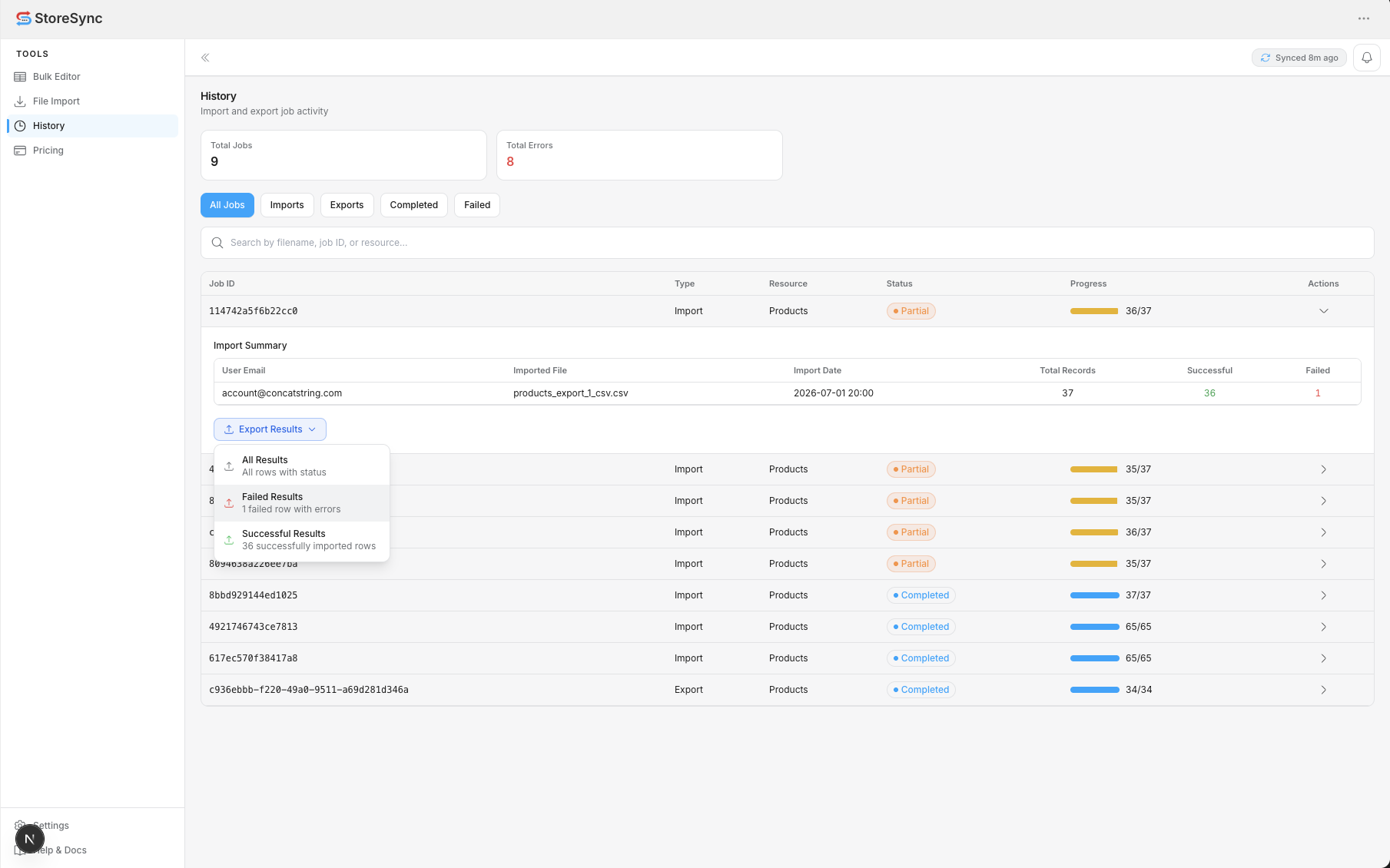
Every import, export, and sync is logged. The History tab shows total jobs and errors at the top, with filters for All Jobs, Imports, Exports, and Failed — plus search by filename, job ID, or resource.
Per-job detail
Each row shows type, resource, status, and a live progress count (e.g. 38/38).
Download results
Pull a results file for any import to review exactly which rows succeeded or failed.
Connect Multiple Stores
Multi-Store Sync (new in Version 2.2) connects your Shopify stores so data can be synced from one primary store to the others. Everything lives on the Sync Manager page in the sidebar, available on the Basic and Pro plans.
- Install StoreSync on every store you want to connect — each store gets its own StoreSync App Key, shown (with show/hide and copy buttons) at the top of its Sync Manager
- In your primary store's Sync Manager, choose Add New Child Store
- Enter the Shopify Store URL (ending in
.myshopify.com) and the other store's StoreSync App Key, then click Connect Store
Treat your App Key like a password. Only the primary store can add new stores to the group.
Manage Connected Stores
The Multi-Store section lists each store with its name, domain, connection status (Connected, Pending, Disconnected, or Error), and the date it was connected.
Manage Store
Opens a connected store's Sync Manager directly in Shopify Admin.
Disconnect Store
Removes a child store from the group — see Disconnect Store.
Primary & Child Stores
A group has one Primary store and any number of connected child stores. Data always syncs from the primary store to its connected stores.
- The primary store connects new stores, runs Resource Sync, and controls Real-Time Resource Sync
- Child stores receive synced data and show that they're connected to the primary store
Resource Sync
From the Resource Sync tab of the primary store, select resources (or Select All), confirm, and StoreSync copies them to every connected store — updating existing records and creating new ones.
Supported resources
Products, Collections, Pages, Customers, Companies, Discounts, Orders, Draft Orders, Blog Posts, Menus, URL Redirects, Files, Metaobjects, and Translations.
- Records are matched by handle, email, path, file name, or title depending on the resource
- Jobs run in the background with live progress, estimated time remaining, and per-resource details
- Cancel a running job at any time
- The Sync Summary shows total, updated, created, and failed records
Some resources have limitations, shown on each resource card — for example, orders are created as pending without payment or fulfillment data, only open draft orders sync, and Companies require B2B on both stores.
Real-Time Sync
With Real-Time Resource Sync on (Configuration tab, primary store), StoreSync receives Shopify webhooks when products, collections, or customers change in the primary store and applies the changes to connected stores in the background, in near real time.
- Events are verified and de-duplicated, with loop protection between stores
- Use Refresh Real-Time Webhooks if updates stop arriving
Real-time sync updates records that have already been synced — run a Resource Sync first. Deletions are not propagated to connected stores.
Sync Manager
The Sync Manager brings every multi-store tool together:
- Multi-Store — your App Key and connected stores
- Resource Sync — select resources and run sync jobs (primary store only)
- Configuration — Real-Time Resource Sync on/off and webhook refresh
- History — Real-time Sync History with search (resource, store, sync ID), filters for date, action, status, resource and connected store, and per-event details
Disconnect Store
Choose Disconnect Store on a connected child store and confirm. The store will no longer be available for Multi-Store Sync Manager.
- The primary store can't be disconnected
- Data already synced to the disconnected store stays in that store
Read more on the Multi-Store Sync page.
Best Practices
A few habits that keep bulk edits safe and predictable.
Export before you import
Pull a fresh export first. It doubles as a backup and as a perfectly-formatted template for your next import.
Start with a small batch
Validate your column mapping on a handful of rows before running thousands. The Preview step is there to catch mistakes early.
Keep namespaces consistent
Decide on a namespace.key convention (e.g. custom.subtitle) and reuse it everywhere so your store data stays predictable.
Review history after each job
Open the History tab to confirm record counts and catch any failed rows while the context is still fresh.
Troubleshooting
Common issues and how to resolve them.
The sheet must be shared as "Anyone with the link → Viewer." Private sheets cannot be accessed. Paste the full spreadsheet URL, not a single-cell link.
Column names are case-sensitive and the first row must be a header row. Make sure "handle" and "resource_type" are present and spelled exactly.
Open the job in History and download the import results. Each failed row lists the reason — usually a malformed JSON value, a wrong date format, or a handle that doesn't exist in the store.
Empty cells are skipped by design. To clear a value intentionally, check your metafield definition allows it — leaving the cell blank will not overwrite the existing value.
Pricing & Plans
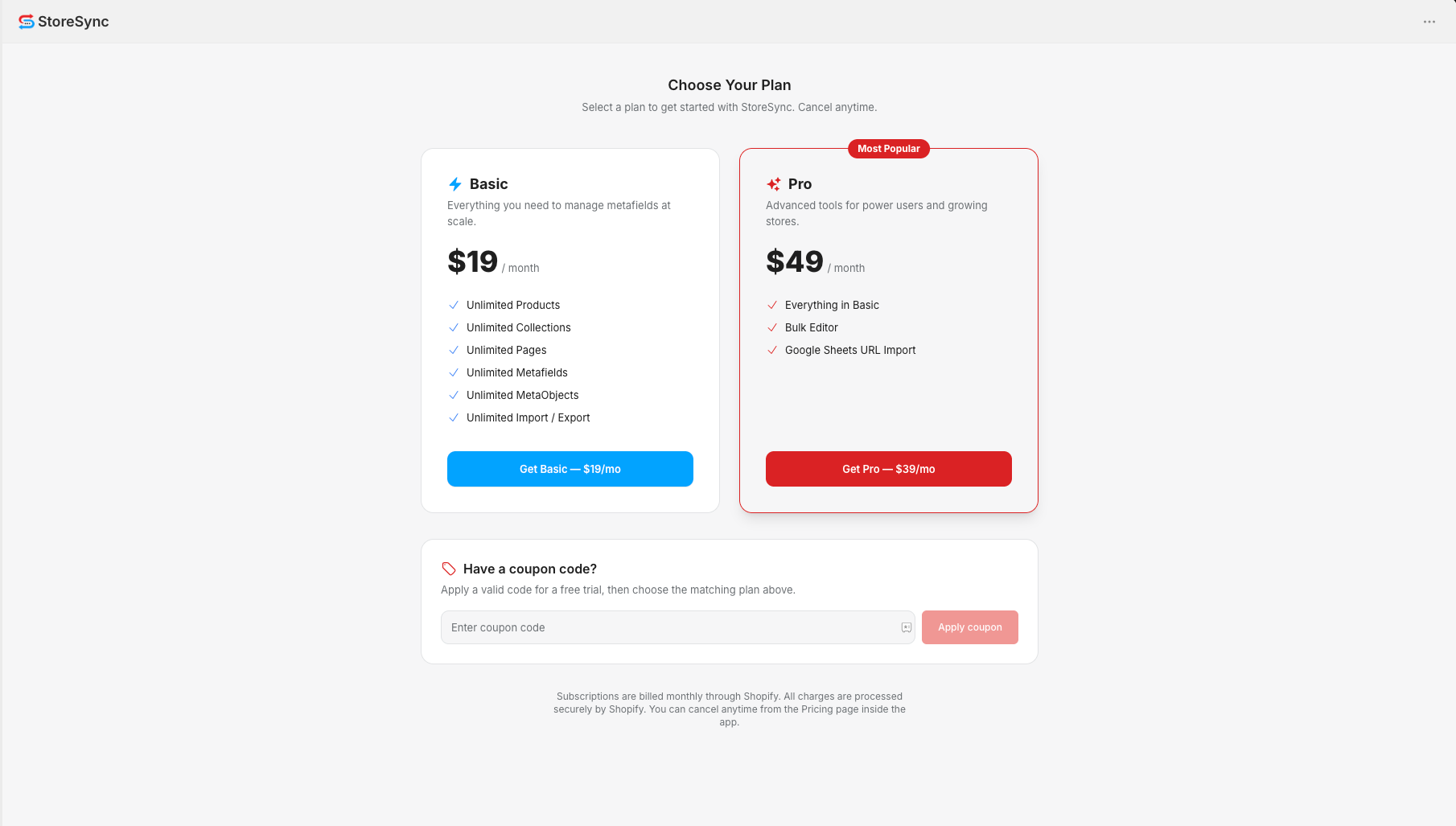
Simple, transparent pricing — pick the plan that fits your store and cancel anytime.
Free forever for small catalogs. Import via CSV and XLSX.
$0/ month
- Up to 50 product & file imports
- Up to 20 collections, pages, metaobjects, blog posts, orders, menus, URL redirects, discounts, companies, customers and draft orders
- Unlimited metafield imports
- CSV & XLSX imports
Unlimited imports and exports, automatic field mapping and multi-store sync.
$19/ month
- Unlimited product & file imports/exports
- Unlimited collection & metaobject imports/exports
- Unlimited page imports/exports
- Unlimited metafield imports/exports
- CSV & XLSX imports & exports
- Automatic field mapping
- Multi-store sync manager
All Basic features plus power-user tools for large catalogs.
$49/ month
- Includes all Basic features
- Bulk editor (spreadsheet style)
- Google Sheets import via URL
Subscriptions are billed monthly through Shopify. Have a coupon? Apply it on the Pricing page for a free Pro trial, then choose the Pro plan.
Frequently Asked Questions
StoreSync is a bulk metafield manager for Shopify. It lets you edit products, collections, and pages in a spreadsheet-style grid, import and export metafields via CSV / XLSX / Google Sheets, and keep an audit trail of every job.
Products, collections, and pages — including their metafields and metaobjects. Each lives on its own tab in the Bulk Editor.
CSV and XLSX uploads up to 50 MB, plus public Google Sheets via URL. The first row must be a header row and column names are case-sensitive.
Free has per-import limits (e.g. up to 50 product & file imports) with unlimited metafield imports. Basic ($19/mo) includes unlimited imports and exports, automatic field mapping and the multi-store sync manager. Pro ($49/mo) includes all Basic features plus the spreadsheet-style Bulk Editor and Google Sheets import via URL.
History report exports are saved as CSV files directly into your own Shopify store's Files. They live on Shopify's infrastructure under your store account, not on StoreSync servers.
Only the cells you fill in are written. Empty cells are skipped, so a partial sheet updates just the metafields you intend to change.
There's no one-click undo, so export a backup first. If an import goes wrong, re-import your backup file to restore the previous values.
On the File Import screen choose "Google Sheets URL," set the sheet to "Anyone with the link → Viewer," then paste the full spreadsheet URL and import the selected tab.
Store-related data may be deleted within a reasonable period after uninstall, unless retention is required for legal, billing, or security reasons. See the Privacy Policy for details.
Subscriptions are billed monthly through Shopify. You can cancel anytime from the Pricing page or your Shopify admin, and all charges are processed securely by Shopify.
Ready to manage store data at scale?
Install StoreSync from the Shopify App Store and run your first bulk edit in minutes.